Sharp DV-SR45U Istruzioni per gli Interventi
Navigare online o scaricare Istruzioni per gli Interventi per Lettori DVD Sharp DV-SR45U. Sharp DV-SR45U Operating instructions Manuale Utente
- Pagina / 102
- Indice
- RISOLUZIONE PROBLEMI
- SEGNALIBRI

- DV-SR45U 1
- Important Safeguards 3
- Laboratories 4
- A NOTE ABOUT RECYCLING 5
- Before you start 10
- Connections 13
- Getting started 16
- Recording 26
- Playing discs 41
- Special playback (cont’d) 48
- 1 2 3 4 5 6 49
- Information on disc editing 57
- Editing original titles 58
- Editing playlists 58
- Editing discs with VR mode 58
- Deleting titles 59
- Putting names on titles 60
- Changing the SETUP menu 61
- Others Español 61
- Disc > Edit 62
- Deleting parts of titles 64
- Guide to edit title name 66
- MENU/LIST 68
- TOP MENU 68
- Setting titles to protect 70
- Disc > Edit > Playlist 78
- Adding titles to a Playlist 79
- Deleting a Playlist 80
- Editing DVD-R discs 81
- Editing DVD-R discs (cont’d) 82
- Troubleshooting 92
- Troubleshooting (cont’d) 93
- Language code 95
- Glossary 96
- Specifications 97
- PRECAUCION 98
- Precaciones (cont.) 99
- Fácil grabación de DVD 100
- Formato del disco 100
- Tipos de disco DVD 100
- ¿Qué son títulos y capítulos? 101
- Original y Playlist (modo VR) 101
- Finalización de un disco 101
- CONSUMER LIMITED WARRANTY 102
Sommario
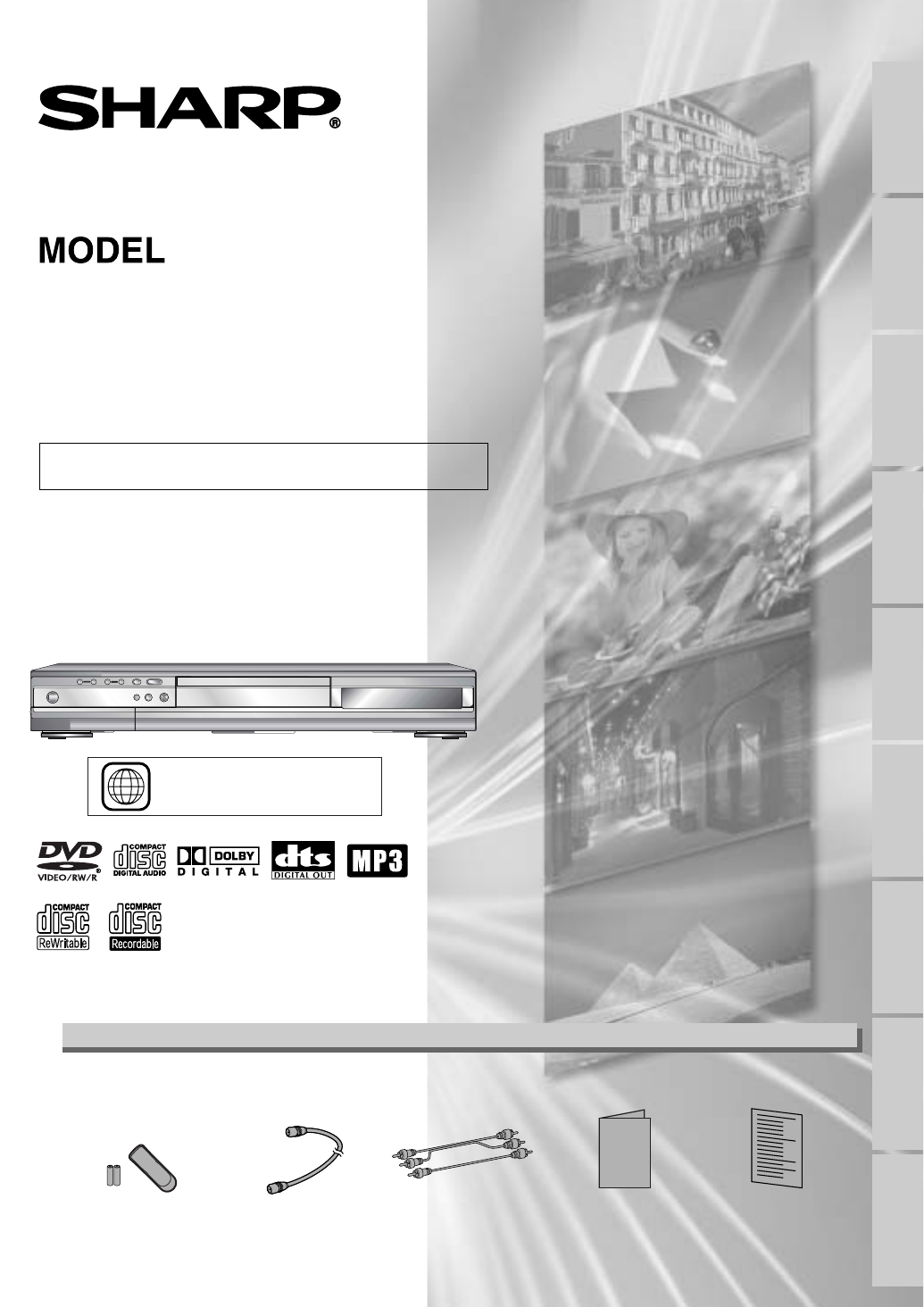
DVD RECORDEROPERATION MANUALPlease read this Operation Manual carefully before using your DVD recorder.1The region number for this DVD recorder is 1.I
Functional overview (cont’d)Before you start10DISPLAY menuPress DISPLAY button to call upthe display menu.This menu willgive you the information on th
Fácil grabación de DVDEspañol100Estas instrucciones le ayudarán a entender fácilmente cómo grabar discos DVD.Nota:Asegúrese que las pilas están en el
Fácil grabación de DVD (cont.)EspañolRecording Playing discs EditingBefore you start Connections Getting startedChanging the SETUP menuOthers Español1
9HS1VMN20185E6515UD★★★★★1VMN20185Printed in ChinaCONSUMER LIMITED WARRANTY(Valid for warranty service in the U.S. only)SHARP ELECTRONICS CORPORATION w
Functional overview (cont’d)Before you startRecording Playing discs EditingBefore you start Connections Getting startedChanging the SETUP menuOthers E
Functional overview (cont’d)Before you start12Front Panel Display Guide1. Current status of theDVD recorder: Appears when disc play-back is paused.: A
Connection to a TVConnectionsRecording Playing discs EditingBefore you start Connections Getting startedChanging the SETUP menuOthers EspañolMake one
Connection to a cable box or satellite boxConnections14Note to the Cable TV System Installer :This reminder is provided to call the Cable TV system in
Connection to an Audio SystemConnectionsRecording Playing discs EditingBefore you start Connections Getting startedChanging the SETUP menuOthers Españ
Easy DVD recordingGetting started16The following will help you to understand easily how to record to DVD discs.Note:Make sure batteries are in the rem
Easy DVD recording (Cont’d)Getting startedRecording Playing discs EditingBefore you start Connections Getting startedChanging the SETUP menuOthers Esp
Channel settingGetting started18All channels are stored in theDVD recorder when purchased.We recommend that you getavailable channels in your areastor
Channel setting (cont’d)Getting startedRecording Playing discs EditingBefore you start Connections Getting startedChanging the SETUP menuOthers Españo
PrecautionsBefore you start2WARNING: TO REDUCE THE RISK OF FIRE OR ELECTRIC SHOCK, DONOT EXPOSE THIS APPLIANCE TO RAIN OR MOISTURE.CAUTION:TO PREVENT
Selecting the TV stereo or SAPGetting started20You can select a sound channel tooutput from TV. “Stereo” hasbeen selected as the default.1Press SETUP
Setting the clockGetting startedRecording Playing discs EditingBefore you start Connections Getting startedChanging the SETUP menuOthers Español21Set
Setting the clock (cont’d)Getting started22Manual Clock Setting1Press SETUP button to dis-play SETUP/DISC menu.SETUP/DISC menu will appear.Screen:2Sel
Setting the clock (cont’d)Recording Playing discs EditingBefore you start Connections Getting startedChanging the SETUP menuOthers EspañolGetting star
Setting the clock (cont’d)Getting started244Select “Daylight SavingTime” using K / L buttons,then press ENTER button.Daylight Saving Time options wil
Selecting the TV aspect ratioGetting startedRecording Playing discs EditingBefore you start Connections Getting startedChanging the SETUP menuOthers E
26Information on DVD recordingRecordingInformationThis DVD recorder can record to DVD-R andDVD-RW discs.When recording, you will need toselect a recor
27RecordingInformation on copy controlSome satellite broadcasts include copy-protectedinformation. For recording these, refer to the fol-lowing.Making
Choosing the recording format of a blank disc28Formatting a discRecordingWhen inserting a blank disc, theDVD recorder starts to initializethe blank di
29RecordingFormatting a disc (cont’d)Recording Playing discs EditingBefore you start Connections Getting startedChanging the SETUP menuOthers Español6
Recording Playing discs EditingBefore you start Connections Getting startedChanging the SETUP menuOthers Español3Before you startPrecautions (cont’d)1
30Formatting a disc (cont’d)RecordingIf you are using a DVD-RW disc,by default it will be VR mode.Youcan change this to Video modefrom SETUP menu.1Pre
31RecordingBasic recordingRecording Playing discs EditingBefore you start Connections Getting startedChanging the SETUP menuOthers EspañolNote• Record
32Basic recording (cont’d)RecordingNote• You cannot check the record-ing sound with the Rec moni-tor function.You can confirm the recording pic-ture q
33RecordingOne-touch timer recordingRecording Playing discs EditingBefore you start Connections Getting startedChanging the SETUP menuOthersNote• The
34Timer recordingRecordingYou can program the unit torecord up to 8 programs, up to ayear in advance. Daily or weeklyprogram recordings are also avail
35RecordingTimer recording (cont’d)Recording Playing discs EditingBefore you start Connections Getting startedChanging the SETUP menuOthers Español8Se
PROG. 1PROG. 2ActualrecordingThe first 30 seconds (at the longest) will be cut off.PROG. 2PROG. 1When the End time of the programming currently being
37Connect the external source properly to the DVD recorder by using input jacks either LINE2 (Front) orLINE1 (Rear).Use commercially available S-Video
38Settings for an external source (cont’d)RecordingBefore recording from an external source, see the instructions for the connection on page 37.DVD-RD
39RecordingFinalizing the discsRecording Playing discs EditingBefore you start Connections Getting startedChanging the SETUP menuOthers EspañolNote• F
Precautions (cont’d)Before you start4Copy ProtectionWarning of Dew FormationThis Unit supports Macrovision copy protection.On DVD discs that include a
40Setting a disc to protectRecordingTo prevent accidental recording,editing, or erasing the titles, youcan protect them from DISCmenu.1Press SETUP but
41Information on DVD playPlaying discsRecording Playing discs EditingBefore you start Connections Getting startedChanging the SETUP menuOthers Español
42Basic playbackPlaying discsNote• For DVD-R (Video mode)and DVD-RW (Video mode)discs which are already final-ized, a title list will be dis-played in
43Basic playback (cont’d)Playing discsRecording Playing discs EditingBefore you start Connections Getting startedChanging the SETUP menuOthers Español
44Basic playback (cont’d)Playing discsNote• Menus vary among discs.Refer to the informationaccompanying the disc fordetails.Playing discs using the di
45Basic playback (cont’d)Playing discsRecording Playing discs EditingBefore you start Connections Getting startedChanging the SETUP menuOthers Español
46Special playbackPlaying discsResume playYou can resume play from whereyou stopped playing the disc last.1During play, press STOP Cbutton.The resume
47Special playback (cont’d)Playing discsRecording Playing discs EditingBefore you start Connections Getting startedChanging the SETUP menuOthers Españ
48Special playback (cont’d)Playing discsStep by step playback1During play, press PAUSE Fbutton.Play will pause and sound will bemuted.2Press SKIP G bu
49Special playback (cont’d)Playing discsRecording Playing discs EditingBefore you start Connections Getting startedChanging the SETUP menuOthers Españ
Precautions (cont’d)Before you startRecording Playing discs EditingBefore you start Connections Getting startedChanging the SETUP menuOthers Español5S
50SearchPlaying discsTitle/Chapter searchUsing SKIP H / G buttons1During play, press SKIP G button to skip the current title orchapter and move to the
51Search (cont’d)Playing discsRecording Playing discs EditingBefore you start Connections Getting startedChanging the SETUP menuOthers EspañolTrack se
Repeat/Random/Program playback52Note• The A-B Repeat playback canonly be set with in the cur-rent title (for DVDs), or cur-rent track (for Audio CDs).
Recording Playing discs EditingBefore you start Connections Getting startedChanging the SETUP menuOthers Español53Repeat/Random/Program playback (cont
54Selecting the format of audio and videoPlaying discsNote•Some discs will only allowyou to change the sound-track from the disc’s menu.Press TOP MENU
55Selecting the format of audio and video (cont’d)Playing discsRecording Playing discs EditingBefore you start Connections Getting startedChanging the
56Selecting the format of audio and video (cont’d)Playing discsSwitching camera anglesSome DVD Video discs featurescenes shot from two or moreangles,
57Information on disc editingEditingRecording Playing discs EditingBefore you start Connections Getting startedChanging the SETUP menuOthers EspañolGu
58Information on disc editing (cont’d)EditingEditing original titlesThe following items can be used to edit the originaltitles.• Deleting titles (Refe
59Editing DVD-RW discs in Video modeEditingRecording Playing discs EditingBefore you start Connections Getting startedChanging the SETUP menuOthers Es
Table of contentsBefore you start6Pause . . . . . . . . . . . . . . . . . . . . . . . . . . . . . . . . . . . .47Step by step playback . . . . . .
60Editing DVD-RW discs in Video mode (cont’d)EditingYou can put title names on thetitles and change the names fromthis menu.The names you put on the t
61Editing DVD-RW discs in Video mode (cont’d)EditingRecording Playing discs EditingBefore you start Connections Getting startedChanging the SETUP menu
62Editing DVD-RW discs in Video mode (cont’d)EditingNote• You cannot select a time forputting markers beyond alength of a title.• The length of chapte
63Editing DVD-RW discs in VR mode (Original)EditingRecording Playing discs EditingBefore you start Connections Getting startedChanging the SETUP menuO
64Editing DVD-RW discs in VR mode (Original) (cont’d)EditingDeleting parts of titlesBefore editing<Preview>EditedStart point End pointYou can de
65Editing DVD-RW discs in VR mode (Original) (cont’d)EditingRecording Playing discs EditingBefore you start Connections Getting startedChanging the SE
66Editing DVD-RW discs in VR mode (Original) (cont’d)Editing3Select “Original” using { / Bbuttons, then press ENTERbutton.Original list will appear.4S
67Editing DVD-RW discs in VR mode (Original) (cont’d)EditingRecording Playing discs EditingBefore you start Connections Getting startedChanging the SE
68Editing DVD-RW discs in VR mode (Original) (cont’d)Editing<Delete>:• You cannot delete the firstchapter marker of each title.7Select “Yes” usi
69Editing DVD-RW discs in VR mode (Original) (cont’d)EditingRecording Playing discs EditingBefore you start Connections Getting startedChanging the SE
Before you startRecording Playing discs EditingBefore you start Connections Getting startedChanging the SETUP menuOthers Español7RecordingThis DVD rec
70Editing DVD-RW discs in VR mode (Original) (cont’d)EditingTo prevent accidental editing, orerasing the titles, you can protectthem from the original
71Editing DVD-RW discs in VR mode (Original) (cont’d)EditingRecording Playing discs EditingBefore you start Connections Getting startedChanging the SE
72Editing DVD-RW discs in VR mode (Playlist)EditingIn VR mode, even when a title isdeleted from a Playlist, the originaltitle will remain in an Origin
73Editing DVD-RW discs in VR mode (Playlist) (cont’d)EditingRecording Playing discs EditingBefore you start Connections Getting startedChanging the SE
74Editing DVD-RW discs in VR mode (Playlist) (cont’d)Editing7Select “Delete” using K / Lbuttons, then press ENTERbutton.Option window will appear.8Sel
75Editing DVD-RW discs in VR mode (Playlist) (cont’d)EditingRecording Playing discs EditingBefore you start Connections Getting startedChanging the SE
76Editing DVD-RW discs in VR mode (Playlist) (cont’d)EditingYou can put chapter markers ineach title. Once a chapter ismarked, you can use it for thec
77Editing DVD-RW discs in VR mode (Playlist) (cont’d)EditingRecording Playing discs EditingBefore you start Connections Getting startedChanging the SE
78Editing DVD-RW discs in VR mode (Playlist) (cont’d)Editing3Select “PlayList” using { / Bbuttons, then press ENTERbutton.Playlist will appear.4Select
79Editing DVD-RW discs in VR mode (Playlist) (cont’d)EditingRecording Playing discs EditingBefore you start Connections Getting startedChanging the SE
Functional overviewBefore you start8Front Panel1. POWER buttonPress to turn the DVD recorder on and off.If timer programmings have been set, press to
80Editing DVD-RW discs in VR mode (Playlist) (cont’d)EditingNote• Deleting a Playlist will notincrease the available record-ing time.A Playlist can be
81Editing DVD-R discsEditingRecording Playing discs EditingBefore you start Connections Getting startedChanging the SETUP menuOthers EspañolYou can de
82Editing DVD-R discs (cont’d)EditingYou can put names on the titlesand change the names from thismenu.The names you put on the titleswill be displaye
Tour of the SETUP menuChanging the SETUP menuRecording Playing discs EditingBefore you start Connections Getting startedChanging the SETUP menuOthers
84Language settingChanging the SETUP menu1Press SETUP button to display SETUP/DISC menu.SETUP/DISC menu will appear.2Select “SETUP” using { / B button
Language setting (cont’d)Changing the SETUP menuRecording Playing discs EditingBefore you start Connections Getting startedChanging the SETUP menuOthe
86Display settingChanging the SETUP menu1Press SETUP button to display SETUP/DISC menu.SETUP/DISC menu will appear.2Select “SETUP” using { / B buttons
Display setting (cont’d)Changing the SETUP menuRecording Playing discs EditingBefore you start Connections Getting startedChanging the SETUP menuOther
88Audio settingChanging the SETUP menu1Press SETUP button to displaySETUP/DISC menu.SETUP/DISC menu will appear.2Select “SETUP” using { / Bbuttons, th
Audio setting (cont’d)Changing the SETUP menuRecording Playing discs EditingBefore you start Connections Getting startedChanging the SETUP menuOthers
Functional overview (cont’d)Before you startRecording Playing discs EditingBefore you start Connections Getting startedChanging the SETUP menuOthers E
90Settings for Parental lock levelChanging the SETUP menu1Press SETUP button to display SETUP/DISC menu.SETUP/DISC menu will appear.2Select “SETUP” us
Settings for Parental lock level (cont’d)Changing the SETUP menuRecording Playing discs EditingBefore you start Connections Getting startedChanging th
92TroubleshootingOthersBefore requesting service for this DVD recorder, check the table below for a possible cause of the problemyou are experiencing.
93Troubleshooting (cont’d)OthersRecording Playing discs EditingBefore you start Connections Getting startedChanging the SETUP menuOthers EspañolSympto
94Troubleshooting (cont’d)OthersSymptom RemedyOthersThe DVD recorder does not operate properly.• When static electricity, etc., causes the DVD recorde
Troubleshooting (cont’d)OthersRecording Playing discs EditingBefore you start Connections Getting startedChanging the SETUP menuOthers EspañolLanguage
96GlossaryOthersAnalog audioAn electrical signal that directlyrepresents sound. Compare thisto digital audio which can be anelectrical signal, but is
97SpecificationsOthersRecording Playing discs EditingBefore you start Connections Getting startedChanging the SETUP menuOthers EspañolSystemPower requ
98PrecacionesEspañolAVISO: PARA REDUCIR EL RIESGO DE INCENDIO O ELECTRO-CHOQUE NO EXPONGA ESTE APARATO A LA HUMEDAD.Este dispositivo cumple con la Par
99Precaciones (cont.)EspañolRecording Playing discs EditingBefore you start Connections Getting startedChanging the SETUP menuOthers EspañolImportante
Prodotti e manuali riguardandi Lettori DVD Sharp DV-SR45U
 (92 pagine)
(1 pagine)
(96 pagine)
(47 pagine)
(67 pagine)
(76 pagine)
(2 pagine)
(102 pagine)
(128 pagine)
(86 pagine)
(1 pagine)
(144 pagine)
(58 pagine)
(28 pagine)
(92 pagine)
(1 pagine)
(96 pagine)
(47 pagine)
(67 pagine)
(76 pagine)
(2 pagine)
(102 pagine)
(128 pagine)
(86 pagine)
(1 pagine)
(144 pagine)
(58 pagine)
(28 pagine)
© 2020, manymanuals.it. Tutti i diritti riservati | 0.082 s |
 Manymanuals.com
 Manymanuals.de
 Manymanuals.fr
 Manymanuals.it
 Manymanuals.pl
 Manymanuals.cz
 Manymanuals.es
 Manymanuals-pt.com
Commenti su questo manuale