Sharp GZ200 Guida Utente Pagina 37
- Pagina / 127
- Indice
- SEGNALIBRI

- HD MEMORY CAMERA 1
- Detailed User Guide 1
- Table of Contents 2
- Names of Parts 3
- Troubleshooting 3
- Maintenance 3
- Charging 4
- Shooting Tips 4
- Holiday Season/Christmas 5
- Amusement Park 9
- Useful Shooting Techniques 10
- Verifying the Accessories 11
- Charging the Battery Pack 12
- Grip Adjustment 13
- Inserting an SD Card 13
- Using the Touch Screen 15
- Playback Screen (Video) 16
- Playback Screen (Still Image) 16
- Clock Setting 17
- Resetting the Clock 18
- Changing the Display Language 19
- Holding this Unit 19
- Tripod Mounting 19
- Using this Unit Overseas 20
- Setting Daylight Saving Time 21
- Optional Accessories 22
- Taking Videos in Auto Mode 23
- Scenes of Intelligent Auto 24
- Zoom Button (T/W) 25
- Press fully 26
- TelephotoWide Angle 28
- Manual Recording 29
- SPOTLIGHT 30
- NIGHTALIVE 30
- SCENE SELECT 30
- Adjusting Focus Manually 32
- Adjusting Brightness 33
- Setting White Balance 34
- Using MWB 34
- BACKLIGHT COMP 35
- TELE MACRO 36
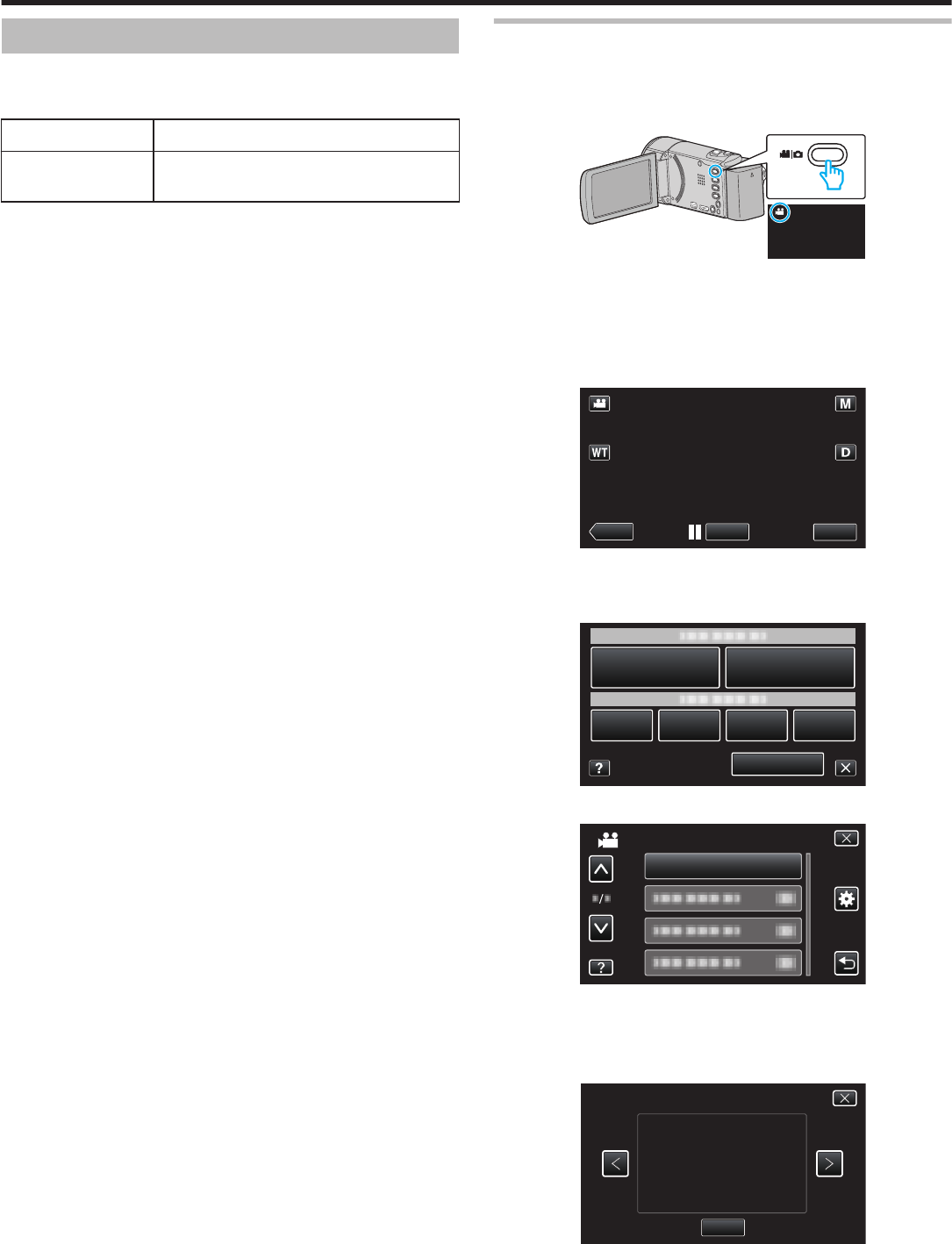
- Recording with Effects 37
- SMILE SHOT 40
- Face (FACE SUB-WINDOW) 41
- Authentication Information 43
- Setting SMILE%/NAME DISPLAY 45
- JOHN MIKE 46
- Reducing Camera Shake 47
- 0:00:01 [5:56] 48
- 0:00:00:01 48
- Time-Lapse Setting 49
- 0:00:00[0:00] 50
- Press halfway 51
- Photographer 52
- Playing Back Videos 55
- During Video Playback 56
- DIGEST PLAYBACK 57
- SELECT DATE 57
- DIGEST TIME 57
- Playing Back Still Images 58
- SEARCH DATE 60
- External Input 61
- Playing Back Playlists 63
- Deleting Unwanted Files 64
- Protecting Files 65
- (TRIMMING) 67
- UPLOAD SETTINGS 68
- Creating Playlists by Date 71
- Recorder 74
- DVD Recorder 75
- Copying to Windows PC 76
- Organizing Files 79
- Recording Videos to Discs 80
- List of Files and Folders 83
- Copying to Mac Computer 84
- Operating the Menu 85
- Recording Menu (Video) 87
- WIND CUT 90
- VIDEO QUALITY 91
- ZOOM MIC 92
- Recording Menu (Still Image) 93
- SHUTTER MODE 96
- IMAGE SIZE 97
- Playback Menu (Video) 98
- DISPLAY DATE/TIME 99
- K2 TECHNOLOGY 100
- Displaying the Item 100
- Playback Menu (Still Image) 101
- PROTECT/CANCEL 102
- Common Menu 103
- Menu Settings 104
- CLOCK ADJUST 105
- DATE DISPLAY STYLE 105
- LANGUAGE 105
- MONITOR BRIGHTNESS 105
- Adjusting Monitor Brightness 105
- OPERATION SOUND 106
- SILENT MODE 106
- AUTO POWER OFF 107
- QUICK RESTART 107
- DEMO MODE 108
- Displaying Demo Mode 108
- TOUCH SCREEN ADJUST 108
- COMPLETED 109
- VIDEO OUTPUT 110
- HDMI OUTPUT 110
- HDMI CONTROL 111
- FACTORY PRESET 111
- PC SOFTWARE UPDATE 111
- FORMAT SD CARD 112
- Caution : 112
- MOBILE USER GUIDE 112
- Interior 114
- LCD Monitor 115
- Common Recording Indications 116
- Video Recording 116
- Still Image Recording 117
- Video Playback 117
- Still Image Playback 118
- Battery Pack 119
- Recording 119
- Playback 120
- Editing/Copying 121
- Computer 121
- Screen/Image 122
- Other Problems 122
- Error Message? 123
- Camcorder 124
- Lens/LCD Monitor 124
- Specifications 125
- Connectors 126
- Still Image 126
- AC Adapter (AC-V11U) 126
- Battery Pack (BN-VG107U) 126
- 0212MYH-SW-VMC2A 127
Prodotti e manuali riguardandi Videocamera Sharp GZ200
 (19 pagine)
(129 pagine)
(19 pagine)
(129 pagine)
 (83 pagine)
(99 pagine)
(83 pagine)
(99 pagine)
 (111 pagine)
(3 pagine)
(92 pagine)
(116 pagine)
(112 pagine)
(2 pagine)
(58 pagine)
(42 pagine)
(139 pagine)
(97 pagine)
(148 pagine)
(117 pagine)
(14 pagine)
(124 pagine)
(96 pagine)
(111 pagine)
(3 pagine)
(92 pagine)
(116 pagine)
(112 pagine)
(2 pagine)
(58 pagine)
(42 pagine)
(139 pagine)
(97 pagine)
(148 pagine)
(117 pagine)
(14 pagine)
(124 pagine)
(96 pagine)
© 2020, manymanuals.it. Tutti i diritti riservati | 0.037 s |
 Manymanuals.com
 Manymanuals.de
 Manymanuals.fr
 Manymanuals.it
 Manymanuals.pl
 Manymanuals.cz
 Manymanuals.es
 Manymanuals-pt.com
Commenti su questo manuale