Sharp AR-M316 Specifiche
Navigare online o scaricare Specifiche per Fotocopiatrice Sharp AR-M316. Sharp AR-M316 Specifications Manuale Utente
- Pagina / 100
- Indice
- RISOLUZIONE PROBLEMI
- SEGNALIBRI

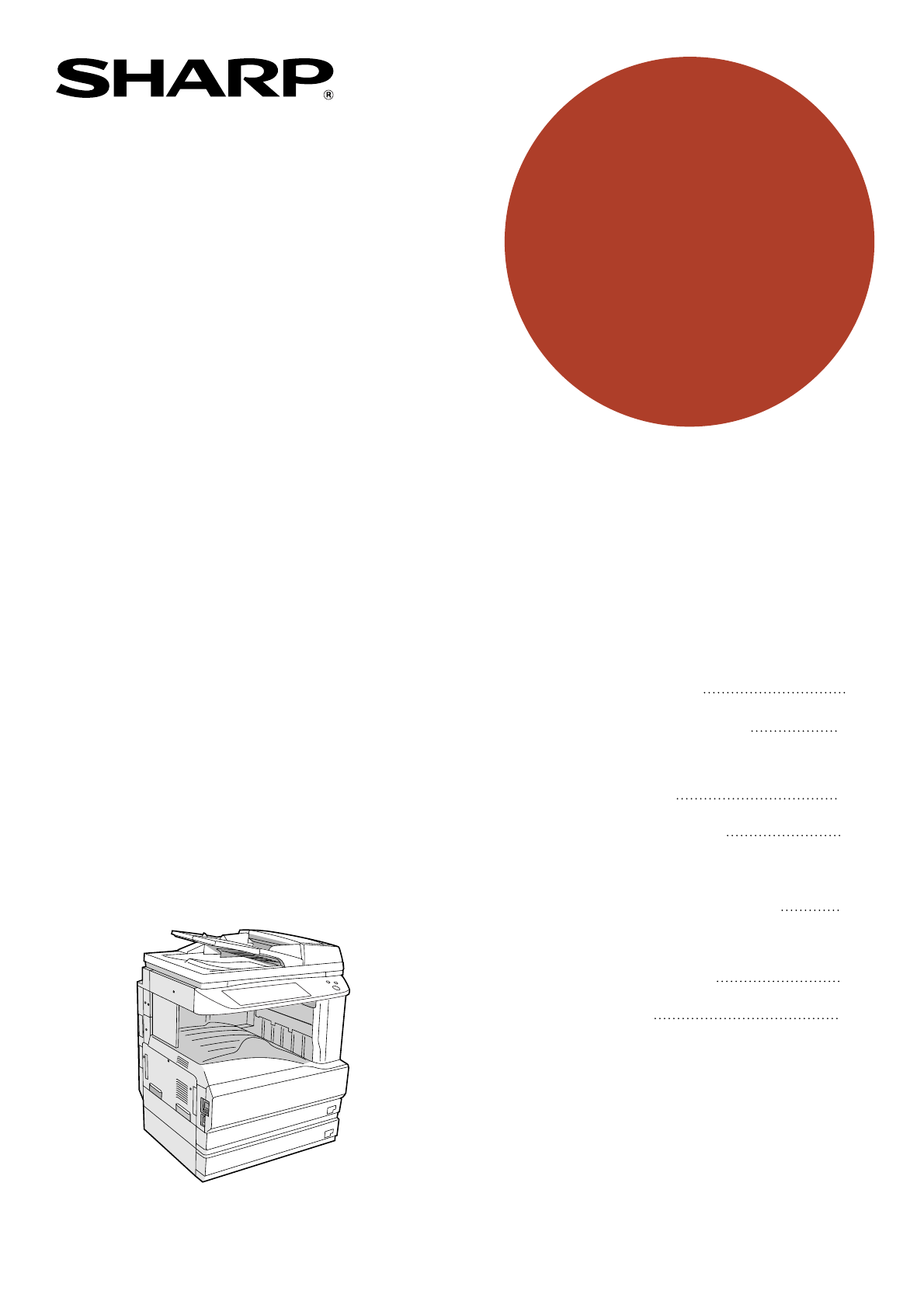
- With the RSPF installed 1
- CONTENTS 3
- 7 APPENDIX 4
- CAUTIONS 5
- LASER INFORMATION 6
- USING THE MANUAL 7
- INDICATIONS 8
- MAIN FEATURES 9
- BEFORE USING THE MACHINE 10
- Interior 11
- OPERATION PANEL 12
- TOUCH PANEL 13
- 4 5 6 7 8 14
- POWER ON AND OFF 15
- POWER SAVE MODES 16
- INITIAL SETTINGS 16
- LOADING PAPER 17
- Special papers 18
- Unfold the bypass tray 20
- SETTINGS 21
- From the [PAPER SELECT] key 22
- COPY FUNCTIONS 23
- NORMAL COPYING 24
- COPYING FROM THE RSPF 25
- Document glass and RSPF 26
- Removing the document cover 26
- () to indicate 27
- READY TO COPY 28
- EXTRA IMAGE ADJUST 28
- TO FRONT TO REAR 28
- AUTOMATIC TWO-SIDED COPYING 29
- USING THE RSPF 30
- EXPOSURE ADJUSTMENT 31
- REDUCTION/ENLARGEMENT/ZOOM 32
- MANUAL RATIO SELECTION 33
- PAPER SELECT 34
- COPY RATIO 34
- EXPOSURE 35
- AUTO A4 35
- X-50% Y-70% 35
- INTERRUPTING A COPY RUN 36
- CONVENIENT COPY FUNCTIONS 37
- READ-END 38
- The staple sort function 39
- Stapling position 39
- SPECIAL MODES 41
- 2-SIDED COPY 42
- MARGIN SHIFT COPY 43
- ERASE COPY 44
- DUAL PAGE COPY 45
- PAMPHLET COPY 46
- MULTI SHOT COPY 48
- ORIGINAL 49
- CARD SHOT 49
- AL MODES 49
- COVER COPY 50
- PRINT ON FRONT COVER? 51
- USER SETTINGS 54
- B STATUS 55
- CUSTOM SETTINGS 55
- JOB PROGRAM MEMORY 57
- EXECUTING A JOB PROGRAM 58
- DELETING A STORED JOB PROGRAM 58
- AUDITING MODE 59
- Chapter 5 60
- DISPLAY MESSAGES 61
- TROUBLESHOOTING 63
- Paper feeding problems 65
- Image quality problems 66
- MISFEED REMOVAL 67
- MISFEED IN THE RSPF 68
- MISFEED IN THE BYPASS TRAY 69
- MISFEED IN THE MACHINE 69
- B: Misfeed in the fusing area 70
- MISFEED IN THE CENTRE TRAY 71
- INFORMATION 73
- being used, remove 74
- REPLACING THE TONER CARTRIDGE 75
- STAPLE CARTRIDGE REPLACEMENT 76
- CHECKING THE TONER QUANTITY 77
- AND TOTAL COUNT 77
- CLEANING THE MACHINE 78
- PERIPHERAL DEVICES 79
- Approx. 27 mm (1") 80
- 500-SHEET PAPER FEED UNIT/ 81
- 2 x 500-SHEET PAPER FEED UNIT 81
- STORAGE OF SUPPLIES 82
- APPENDIX 83
- MATERIAL SAFETY DATA SHEET 85
- INDEX BY PURPOSE 96
- Trademark acknowledgments 97
- Connectors 98
- INFORMATION ON DISPOSAL 99
- PRINTED IN CHINA 100
Sommario
DIGITAL MULTIFUNCTIONAL SYSTEMOPERATION MANUAL(for copier)• BEFORE USING THE MACHINE• COPY FUNCTIONS• CONVENIENT COPY FUNCTIONS• USER SETTINGS•
81Chapter 1BEFORE USING THE MACHINEThis chapter contains basic information that should be read before using the machine.PART NAMES AND FUNCTIONSExteri
AR-M256/AR-M316 OPERATION MANUAL (for copier)This manual has been printed using a vegetable-based soy oil inkto help protect the environment.Printed
9BEFORE USING THE MACHINE1InteriorBypass trayRegular paper and special paper (such as transparency film) can be fed from the bypass tray. (p.18)Bypass
10BEFORE USING THE MACHINEOPERATION PANELTouch panelThe machine status, messages and touch keys are displayed on the panel. The display will show the
11BEFORE USING THE MACHINE1TOUCH PANELUsing the touch panel[Example 1]Items on the touch panel are selected by touching the key associated with the it
12BEFORE USING THE MACHINEJob status screen (common to copy, print, network scan and fax)This screen appears when the [JOB STATUS] key on the operatio
131POWER ON AND OFFThe power switch is located on the left side of the machine.POWER ONTurn the power switch to the "ON" position.•When the
14BEFORE USING THE MACHINEINITIAL SETTINGSThe machine reverts to the initial settings when it is first turned on, when the [CLEAR ALL] key ( ) is pres
151LOADING PAPERWhen a tray runs out of paper, a message appears in the touch panel. Load paper in the tray.PAPERThe specifications for the types and
16BEFORE USING THE MACHINESpecial papersFollow these guidelines when using special papers.EnvelopesDo not use the following envelopes (Misfeeds will o
17BEFORE USING THE MACHINE1LOADING PAPERMake sure that the machine is not copying, printing, or printing a received fax, and then follow these steps t
Each instruction also covers the optional units used with these products.WarningThis is a Class A product. In a domestic environment this product may
18BEFORE USING THE MACHINELoading paper in the bypass tray1Unfold the bypass tray.To enable correct detection of the paper size, be sure to pull out
19BEFORE USING THE MACHINE1CHANGING A TRAY’S PAPER TYPE AND PAPER SIZE SETTINGS When you change the paper in a tray, follow the steps below to change
20BEFORE USING THE MACHINESetting the paper type in the bypass trayUse either of the following two methods to set the bypass tray's paper type se
212Chapter 2COPY FUNCTIONSThis chapter explains basic copying functions such as normal copying, reduction or enlargement, and exposure adjustment.MAIN
22NORMAL COPYINGCOPYING FROM THE DOCUMENT GLASS1Open the document cover/RSPF and place the original face down on the document glass.[How to place the
23COPY FUNCTIONS2COPYING FROM THE RSPF1Make sure that an original has not been left on the document glass and then close the RSPF.If an original remai
24COPY FUNCTIONSPOINTS TO NOTE WHEN MAKING COPIESDocument glass and RSPF• Paper in a different orientation from the original can be selected if the au
25COPY FUNCTIONS2Copying originals of mixed length (Mixed feeding)When using the RSPF, originals of mixed length can be fed together as long as the wi
26COPY FUNCTIONSBYPASS FEED (special paper)The bypass tray must be used to feed special papers such as transparency film and labels. The bypass tray c
272AUTOMATIC TWO-SIDED COPYINGTwo originals can be automatically copied onto both sides of a single sheet of paper. When the RSPF is used, two-sided c
1CONTENTSCAUTIONS...
28COPY FUNCTIONS5Make sure that a suitable paper size is automatically selected, or select another size using the [PAPER SELECT] key.6Select the numbe
292EXPOSURE ADJUSTMENTSELECTING THE ORIGINAL IMAGE TYPE AND MANUALLY ADJUSTING THE EXPOSURE[AUTO] is selected by default for automatic adjustment of t
30REDUCTION/ENLARGEMENT/ZOOMThere are three ways to enlarge and reduce copies:● Automatic ratio selection according to the paper size ...
31COPY FUNCTIONS2MANUAL RATIO SELECTIONThere are five (four) preset reduction ratios and five (four) preset enlargement ratios.In addition, the [ZOOM]
32COPY FUNCTIONS6Make sure that a suitable paper size is automatically selected, or select another size using the [PAPER SELECT] key.If AUTO PAPER SEL
33COPY FUNCTIONS24Touch the [X] key.The [X] key is selected (highlighted) by default, so there is normally no need to perform this step (Go to step 5.
34INTERRUPTING A COPY RUNA copy run can be temporarily interrupted to allow another copy job to be performed. When the other job is finished, the copy
353Chapter 3CONVENIENT COPY FUNCTIONSThis chapter explains special finishing functions and other convenient functions. COPY FINISHING FUNCTIONSThis se
36CONVENIENT COPY FUNCTIONS1Place the originals in the RSPF or on the document glass. (p.22, p.23)If originals are placed in the RSPF, the sort functi
37CONVENIENT COPY FUNCTIONS3STAPLE SORT (when the finisher (AR-FN5A) is installed)This function collates the copies, staples each set, and delivers th
25TROUBLESHOOTING AND MAINTENANCEDISPLAY MESSAGES... 59TROUBLESHOOTING ... 61MISFE
38CONVENIENT COPY FUNCTIONS1Place the original(s). (p.22, p.23)2Touch the [OUTPUT] key.3Touch the [STAPLE SORT] key.When the [STAPLE SORT] key is sele
393SPECIAL MODESWhen the [SPECIAL MODES] key in the main screen of copy mode is touched, the special modes screen will appear. This screen contains th
40CONVENIENT COPY FUNCTIONSGENERAL PROCEDURE FOR USING THE SPECIAL FUNCTIONS1Touch the [SPECIAL MODES] key.2Touch the key of the desired special mode.
41CONVENIENT COPY FUNCTIONS3MARGIN SHIFT COPYThe margin shift function is used to automatically shift the text or image on the copy paper approximatel
42CONVENIENT COPY FUNCTIONSERASE COPYThe erase function is used to erase the shadow lines on copies that are produced when copying thick originals or
43CONVENIENT COPY FUNCTIONS3DUAL PAGE COPYThe dual page copy function produces separate copies of two adjoining pages on the document glass. It is esp
44CONVENIENT COPY FUNCTIONSPAMPHLET COPYThe pamphlet copy function is used to arrange copies in the proper order for centre-stapling and folding into
45CONVENIENT COPY FUNCTIONS3JOB BUILD MODEUse this function when you need to copy more originals than can be placed in the RSPF at once. (The maximum
46CONVENIENT COPY FUNCTIONSMULTI SHOT COPYThe multi shot copy function is used to copy two or four originals onto one sheet of copy paper in a specifi
47CONVENIENT COPY FUNCTIONS3ORIGINAL SIZEIf you wish to use the paper other than the automatically selected original size, original size setting is sp
3CAUTIONSFollow the cautions below when using this machine.CAUTIONS ON USING THE MACHINEWarning:• The fusing area is hot. Exercise care in this area w
48CONVENIENT COPY FUNCTIONSCOVER COPYCover copy mode is used to add a cover to the front or back, or both the front and back, of a multipage document
49CONVENIENT COPY FUNCTIONS31Touch the key and then touch the [COVER] key in the special modes menu screen.The cover setting screen will appear.The
50CONVENIENT COPY FUNCTIONSCARD SHOTThe front and back of a card can be copied onto one sheet of paper.This function is convenient for making copies f
51CONVENIENT COPY FUNCTIONS35Place the original on the document glass.Place the front side of the original face down and close the document cover/RSPF
524Chapter 4USER SETTINGSCUSTOM SETTINGSThe custom settings let you adjust certain features of the machine to better suit your needs. The custom setti
53USER SETTINGS4GENERAL PROCEDURE FOR CUSTOM SETTINGS1Press the [CUSTOM SETTINGS] key.2Touch the key of the desired setting. The setting screen will a
54USER SETTINGSSETTINGSTotal countThe total page count display shows the following counts:• The total count shows the combined output total of the cop
554JOB PROGRAM MEMORYIf you frequently use the same settings for copy jobs, you can store in the settings in a job program. Up to 10 job programs can
56USER SETTINGSEXECUTING A JOB PROGRAM1Press the [ ] key.2Touch the program number key of the desired program.The job program will be executed. A numb
574AUDITING MODEWhen auditing mode is enabled, a count is kept of the number of pages printed or copied by each account (maximum of 100 accounts). The
4Be sure to connect the power cord only to a power outlet that meets the specified voltage and current requirements. Also make certain the outlet is p
585Chapter 5TROUBLESHOOTING AND MAINTENANCEThis chapter describes troubleshooting and maintenance such as misfeed removal, replacing the toner cartrid
595DISPLAY MESSAGESIf one of the following messages appears in the display, take prompt action as instructed by the message.Message Cause and solution
60TROUBLESHOOTING AND MAINTENANCESELECTED PAPER TRAY IS OUT OF SERVICE.Contact your authorised service representative.-CHECK STAPLER POSITION OR STAPL
615TROUBLESHOOTINGIf you experience difficulty using the machine, check the following troubleshooting guide before calling for service. Many problems
62TROUBLESHOOTING AND MAINTENANCEOriginal size is not selected automatically, or copying does not take place on paper that matches the original size.T
63TROUBLESHOOTING AND MAINTENANCE5Paper feeding problemsProblem Cause and solution PageWhen using paper fed from the bypass tray, the copied image is
64TROUBLESHOOTING AND MAINTENANCEImage quality problemsProblem Cause and solution PageCopies are too dark or too light.The image of the original is to
655MISFEED REMOVALWhen a misfeed occurs during copying, the message "MISFEED HAS OCCURRED." will appear in the touch panel and printing will
66TROUBLESHOOTING AND MAINTENANCEMISFEED IN THE RSPF1Remove the misfed original.Check sections A, B, and C in the illustration at left and remove the
67TROUBLESHOOTING AND MAINTENANCE5MISFEED IN THE BYPASS TRAY1Carefully pull the misfed paper out.2Open and close the side cover.Make sure that the mis
5ENVIRONMENTAL INFORMATIONUSING THE MANUALThis machine has been designed to provide convenient copying features in a minimum amount of office space an
68TROUBLESHOOTING AND MAINTENANCE4Close the front cover and side cover.Make sure that the misfeed message is cleared.B: Misfeed in the fusing area1Ope
69TROUBLESHOOTING AND MAINTENANCE5MISFEED IN THE CENTRE TRAYRemove the paper by pulling it into the centre tray.MISFEED IN THE UPPER PAPER TRAYMake su
70TROUBLESHOOTING AND MAINTENANCEMISFEED IN THE LOWER PAPER TRAY● Make sure that there is no misfed paper in the machine before pulling the tray out.
71TROUBLESHOOTING AND MAINTENANCE5MISFEED IN THE UPPER EXIT AREA(when a job separator tray kit or finisher (AR-FN5A) is installed)If a job separator
72TROUBLESHOOTING AND MAINTENANCE3If staple sort copying is being performed, open the paper guide and remove any misfed paper from the stapler compile
735REPLACING THE TONER CARTRIDGETo check how much toner remains in the toner cartridge (p.75), hold down the [COPY] key. The amount of toner remaining
74STAPLE CARTRIDGE REPLACEMENT(when the finisher (AR-FN5A) is installed)When the message "ADD STAPLES." appears, replace the staple cartridg
75TROUBLESHOOTING AND MAINTENANCE5STAPLE JAM REMOVALIf staples become jammed in the stapler, the message "CHECK STAPLER POSITION OR STAPLE JAM.&q
76CLEANING THE MACHINEDOCUMENT GLASS AND DOCUMENT COVER/RSPFIf the document glass, document cover/RSPF, or scanning glass for originals fed from the R
776Chapter 6PERIPHERAL DEVICES AND SUPPLIESOptional equipments and supplies are explained in this chapter. To purchase optional equipment and supplies
6THE MEANING OF "R" IN ORIGINAL AND PAPER SIZE INDICATIONSAn "R" appearing at the end of an original or paper size (A4R, A5R, 5-1/
78PERIPHERAL DEVICES AND SUPPLIESFINISHER (AR-FN5A)When an optional finisher (AR-FN5A) is installed, the machine can automatically staple the sorted c
79PERIPHERAL DEVICES AND SUPPLIES6500-SHEET PAPER FEED UNIT/2 x 500-SHEET PAPER FEED UNITThese paper feed units provide the convenience of increased p
80PERIPHERAL DEVICES AND SUPPLIESREVERSING SINGLE PASS FEEDERThe reversing single pass feeder (RSPF) can automatically feed multi-page documents.If th
817Chapter 7APPENDIXSPECIFICATIONSModel AR-M256 AR-M316Type Digital Multifunction System, DesktopPhotoconductive type OPC drumDocument glass type Fixe
82APPENDIX*1 First copy time is measured with original on the document glass in full ready condition with fuser at operating temperature and mirror mo
MATERIAL SAFETY DATA SHEETData Issued: Feb. 1, 2007MSDS No. F-01481831. PRODUCT AND COMPANY IDENTIFICATION Product Name : AR-310NT/ AR-310T/ AR-310ST/
MATERIAL SAFETY DATA SHEETData Issued: Feb. 1, 2007MSDS No. F-01481843. HAZARDS IDENTIFICATIONMost Important Hazards and Effects of the ProductsHuman
MATERIAL SAFETY DATA SHEETData Issued: Feb. 1, 2007MSDS No. F-0148185Exposure Limit Values OSHA-PEL (USA) : 15mg/m3 (Total Dust) , 5mg/m3 (Respirable
MATERIAL SAFETY DATA SHEETData Issued: Feb. 1, 2007MSDS No. F-0148186Chronic Effect : In a study in rats of chronic inhalation exposure to a typical t
MATERIAL SAFETY DATA SHEETData Issued: Aug. 1. 2003MSDS No. F-31201871. PRODUCT AND COMPANY IDENTIFICATION Product Name : AR-271ND / AR-271DV / AR-271
7MAIN FEATURESHigh-speed laser copying• First-copy time* is only 4.8 seconds.• Copying speed is 25 copies/min. (AR-M256) or 31 copies/min. (AR-M316) T
MATERIAL SAFETY DATA SHEETData Issued: Aug. 1. 2003MSDS No. F-31201883. HAZARDS IDENTIFICATIONMost Important Hazards and Effects of the ProductsHuman
MATERIAL SAFETY DATA SHEETData Issued: Aug. 1. 2003MSDS No. F-3120189Exposure limit values OSHA-PEL (USA) : 15mg/m3 (Total Dust) , 5mg/m3 (Respirable
MATERIAL SAFETY DATA SHEETData Issued: Aug. 1. 2003MSDS No. F-3120190Chronic Effect : In a study in rats of chronic inhalation exposure to a typical t
91INDEXSymbols[#/P] key ... 10, 55, 562 - 82 x 500-sheet paper feed unit ... 70,
92GGreyed out ... 11Group copy...
93Paper tray... 9, 15, 17, 19, 69Paper type... 15, 19, 20Paper
94PreparationsBypass tray, loading paper in...18Documet cover, removing ...24Init
Trademark acknowledgmentsThe following trademarks and registered trademarks are used in conjunction with the machine and its peripheral devices and ac
ConnectorsLUOKAN 1 LASERLAITEKLASS 1 LASERAPPARATCaution:This connector is only intended for service purposes.Any connection to this terminal may caus
INFORMATION ON DISPOSALA. Information on Disposal for Users (private households)1. In the European UnionAttention: If you want to dispose of this equi
Più documenti per Fotocopiatrice Sharp AR-M316


Prodotti e manuali riguardandi Fotocopiatrice Sharp AR-M316
 (14 pagine)
(92 pagine)
(104 pagine)
(12 pagine)
(4 pagine)
(12 pagine)
(12 pagine)
(88 pagine)
(117 pagine)
(12 pagine)
(56 pagine)
(14 pagine)
(92 pagine)
(104 pagine)
(12 pagine)
(4 pagine)
(12 pagine)
(12 pagine)
(88 pagine)
(117 pagine)
(12 pagine)
(56 pagine)

 (47 pagine)
(160 pagine)
(36 pagine)
(8 pagine)
(104 pagine)
(47 pagine)
(160 pagine)
(36 pagine)
(8 pagine)
(104 pagine)
© 2020, manymanuals.it. Tutti i diritti riservati | 0.027 s |
 Manymanuals.com
 Manymanuals.de
 Manymanuals.fr
 Manymanuals.it
 Manymanuals.pl
 Manymanuals.cz
 Manymanuals.es
 Manymanuals-pt.com
Commenti su questo manuale