Sharp AR-M230 Manuale Utente Pagina 1
Navigare online o scaricare Manuale Utente per Apparecchi multifunzione Sharp AR-M230. Sharp AR-M230 User's Manual Manuale Utente
- Pagina / 34
- Indice
- RISOLUZIONE PROBLEMI
- SEGNALIBRI

- AR-M230/M270 Series 1
- Online Manual 1
- Introduction 2
- How to use the online manual 3
- Contents 4
- Basic printing 5
- Printer driver settings 9
- Two-sided printing 10
- CONTENTS INDEX 11
- Printing a watermark 14
- Canceling a print job 17
- Shared printer 18
- Client Client 18
- Print server 18
- Shared printer settings 19
- Client settings 20
- Troubleshooting 23
- Printing does not take place 24
- Improper printing operation 28
- (part 1) 29
- (part 2) 30
- If a Notice Page is printed 31
- Printer specifications 33
- CONTENTS 34
Sommario
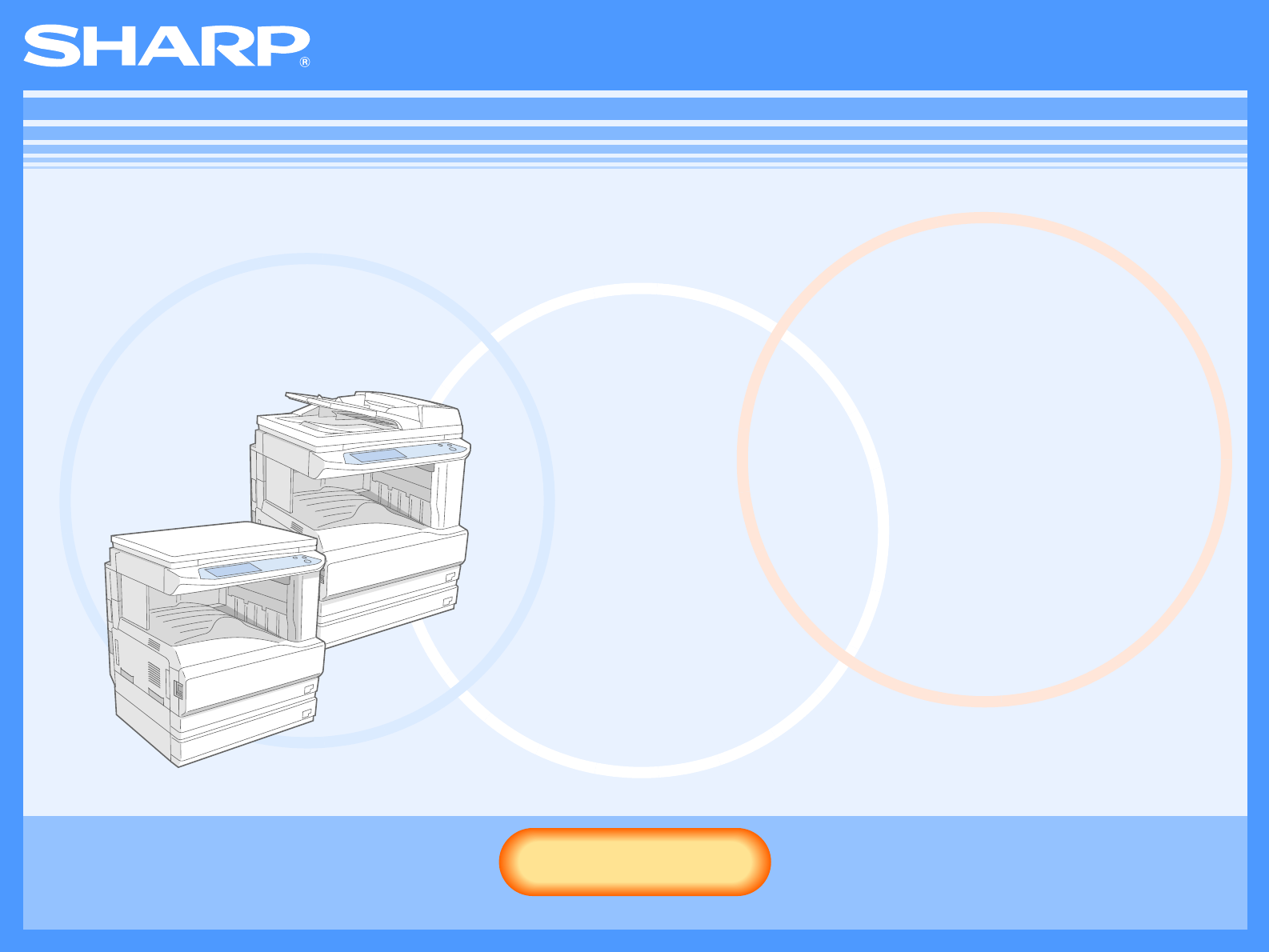
AR-M230/M270 SeriesOnline ManualStartStartClick this "Start" button.
1PRINT10CONTENTS INDEXTwo-sided printing This feature allows you to print on both sides of the paper.To use this function, open the printer driver set
1PRINT11CONTENTS INDEXPrinting multiple pages on one pageThis feature allows you to reduce and print two or four document pages on a single sheet of p
1PRINT12CONTENTS INDEXFitting the printed image to the paperThe printer driver can adjust the size of the printed image to match the size of the paper
1PRINT13CONTENTS INDEXRotating the print image 180 degreesThe print image can be rotated 180 degrees.This feature is used to enable correct printing o
1PRINT14CONTENTS INDEXPrinting a watermarkYou can print a watermark such as "CONFIDENTIAL" on your document. To print a watermark, open the
1PRINT15CONTENTS INDEXStapling printed pages (when a finisher is installed)When a finisher is installed, printed pages can be stapled.To use this feat
1PRINT16CONTENTS INDEXGiving priority to a print jobWhen a print job is waiting because the machine is copying or printing a received fax, the followi
1PRINT17CONTENTS INDEXCanceling a print jobA print job in progress or waiting to be printed can be canceled. Use the print job status screen to cancel
2PRINTER SHARING18CONTENTS INDEXSharing the printer using windows networkingThe machine can be used as a shared printer in a Windows 95/98/Me/NT 4.0/2
2PRINTER SHARING19CONTENTS INDEXShared printer settingsOn the computer to which the machine is directly connectedFollow the steps below to use the com
2CONTENTS INDEXIntroductionThis manual describes the printer function of the AR-M230/M270 series digital multifunctional system.Trademark Acknowledgme
2PRINTER SHARING20CONTENTS INDEXClient settings(part 1)Follow the procedure below to install the printer driver in the client.1Click the "start&q
2PRINTER SHARING21CONTENTS INDEXClient settings(part 2)6Select "Browse for a printer", and click the "Next" button.In Windows 95/9
2PRINTER SHARING22CONTENTS INDEXClient settings(part 3)Settings in Windows NT 4.0If your operating system is Windows NT 4.0, establish settings as fol
3TROUBLESHOOTING23CONTENTS INDEXTroubleshootingThis chapter describes how to solve printer problems. Refer to the relevant section based on the proble
3TROUBLESHOOTING24CONTENTS INDEXPrinting does not take place(part 1)Check the connections Is the interface cable compatible with the machine and compu
3TROUBLESHOOTING25CONTENTS INDEXPrinting does not take place(part 2)Check Your Computer Is there enough computer memory or hard disk space?To use the
3TROUBLESHOOTING26CONTENTS INDEXPrinting does not take place(part 3)Check the machine Power switch on?Turn the power switch on. (See "POWER ON AN
3TROUBLESHOOTING27CONTENTS INDEXPrinting does not take place(part 4)Checking the printer driver Has the printer driver been installed properly?Check i
3TROUBLESHOOTING28CONTENTS INDEXImproper printing operationPrinting is slow Simultaneous use of two or more application software programs?Start print
3TROUBLESHOOTING29CONTENTS INDEXPrint quality is not satisfactory(part 1)Check the paper being used Non-standard paper used?Check that the paper confo
3CONTENTS INDEXHow to use the online manualThis section explains how to view the online manual. Please read this section before using the online manua
3TROUBLESHOOTING30CONTENTS INDEXPrint quality is not satisfactory(part 2)The printed image is coarse Has the printer driver been specified to suit bot
3TROUBLESHOOTING31CONTENTS INDEXIf a Notice Page is printedIf you find that a notice page has been printed at the end of a print job, the print data r
3TROUBLESHOOTING32CONTENTS INDEXUninstalling the printer driverTo delete a printer driver that has been installed using the installer, follow the proc
4SPECIFICATIONS33CONTENTS INDEXPrinter specifications*1 The factory default setting for memory used for the printer function is 16 MB. The proportion
5INDEX34CONTENTSIndexA"Auto Select" ... 6BBasic printing ... 5"
4CONTENTS INDEXContentsIntroduction 2How to use the online manual 3Basic printing 5Opening the printer driver from the "start" button 8Print
1PRINT5CONTENTS INDEXBasic printing(part 1)The following example explains how to print a document from WordPad.Before printing, make sure that the cor
1PRINT6CONTENTS INDEXBasic printing(part 2)5Click the "Print" button ("OK" button in Windows 95/98/Me/NT 4.0).Printing begins. The
1PRINT7CONTENTS INDEXBasic printing(part 3)When the "Paper Selection" setting is "Paper Source" or "Paper Type"When &quo
1PRINT8CONTENTS INDEXOpening the printer driver from the "start" buttonPrinter driver settings can be configured by opening the printer driv
1PRINT9CONTENTS INDEXPrinter driver settingsTo view Help for a setting, click the button in the upper right-hand corner of the window and then click
Prodotti e manuali riguardandi Apparecchi multifunzione Sharp AR-M230
 (6 pagine)
 (8 pagine)
© 2020, manymanuals.it. Tutti i diritti riservati | 0.019 s |
 Manymanuals.com
 Manymanuals.de
 Manymanuals.fr
 Manymanuals.it
 Manymanuals.pl
 Manymanuals.cz
 Manymanuals.es
 Manymanuals-pt.com
Commenti su questo manuale