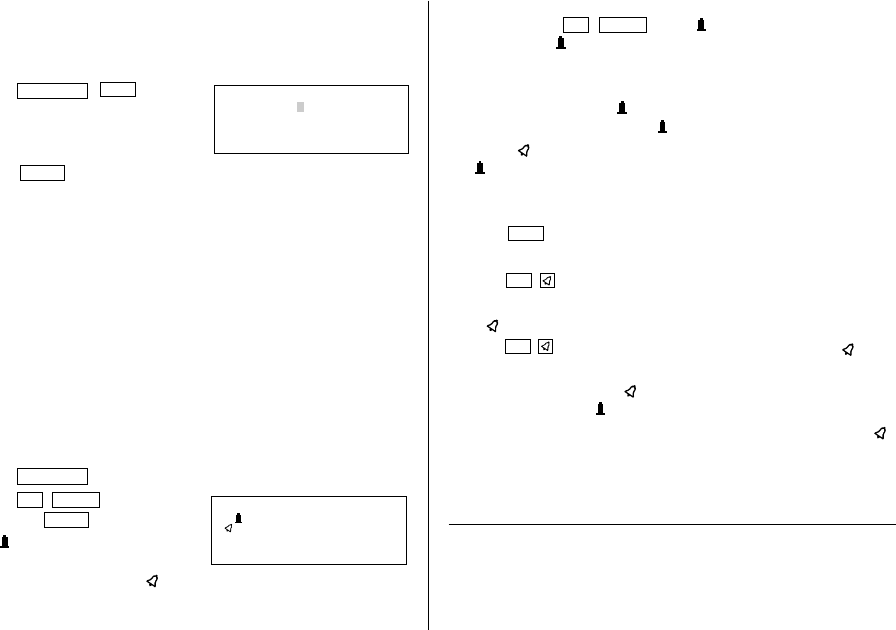
Sharp YO-520 Specifiche Pagina 13

  • Scaricare
  • Aggiungi ai miei manuali
  • Stampa
  • Pagina
    / 40
  • Indice
  • SEGNALIBRI
  • Valutato. / 5. Basato su recensioni clienti
Vedere la pagina 12
11
(3) Enter the desired date directly
When the date is not close to the currently displayed date, the following
method is more convenient than the previous 2 ways.
<Example>
Enter a schedule listing on June 26, 2002.
1. Press
SCHEDULE
C•CE
to display
the date entry prompt.
2. Enter the date.
06262002
3. Press
ENTER
.
The time entry prompt for June 26, 2002 is displayed. Enter the time and
detail following the procedure for (1) Enter the desired date in Calendar
mode from step 4 on page 10.
If an attempt is made to store an invalid date, you cannot move to the
time entry prompt. Enter the correct date and follow the next procedure.
2.Schedule Alarm
Schedule alarm sounds for approximately 20 seconds when the time set for
a schedule listing is reached. Once a schedule item has been selected for
the alarm and the alarm has been turned on, the alarm will sound
automatically and the relevant item will be displayed even if the Organizer
has been turned off. The alarm can also be set to sound for secret items
without displaying the item.
<Example>
Set an alarm for June 22, 2001 (Meeting at 10:00AM -
11:00AM).
1. Press
SCHEDULE
and enter the date, time, and schedule detail.
2. Press
2nd
ALARM
to set the alarm
and press
ENTER
to store.
A is displayed on the left of the
starting time for the scheduled item,
and an alarm sound mark ( ) is displayed on the left of the display.
You cannot set the schedule alarm to the listings with no time entry.
MM/DD/YYYY
DAY :12
MONTH :04
YEAR :2001
You can set an alarm while you are entering or editing the schedule item.
When you press
2nd
ALARM
while is displayed, the alarm will be
canceled and will disappear from the display.
If the alarm time you attempt to enter has already passed, the message
ALARM TIME ELAPSED! appears briefly. Enter the correct alarm time.
After the alarm sounds, will disappear and the scheduled item will
remain in the memory without .
Even if is turned off and the scheduled alarm time has passed,
will not disappear from the display.
The schedule alarm may not sound if the time for a schedule listing
arrives while you are exchanging data with a personal computer.
Press
CCE
to stop the alarm sound.
Turn the alarm sound on and off
Pressing
2nd
after the alarm setting, turns off the alarm sound while
keeping the schedule alarm turned on.
A disappears, and the alarm sound is set to off.
Press
2nd
to set the alarm sound to on again, so that the is
displayed.
Setting the alarm sound ( mark status) does not affect the setting of
the schedule alarm ( mark status) to each schedule listing.
The schedule alarm set for the schedule listing will sound when the
is turned on and the time for each listing is reached. You cannot classify
or declassify each listing.
See also ...
Recalling the Listings ................ 15 Checking the Memory Storage .. 15
Editing the Listings .................... 17 Entering Characters .................... 4
Deleting the Listings .................. 17
FRI JUN 22,2001
Meeting
10:00AM~11:00AM
YO-520 (E0365E)
YO-520 p10~19,E.E65 5/31/2000, 11:59 AM11
Vedere la pagina 12
1 2 ... 8 9 10 11 12 13 14 15 16 17 18 ... 39 40

Commenti su questo manuale

Nessun commento

Nexcom NSA 5150 manuels

Manuels d'utilisation et guides de l'utilisateur pour Matériel Nexcom NSA 5150.
Nous fournissons des manuels en pdf 1 Nexcom NSA 5150 à télécharger gratuitement par type de document : Manuel de l'utilisateur


Nexcom NSA 5150 Manuel de l'utilisateur (84 pages)


marque: Nexcom | Catégorie: Hardware | Taille: 8.04 MB |


Table des matières

Network Security Appliance

1

NSA 5150

1

User Manual

1

Contents

2

Chapter 3: System Setup

3

Chapter 4: BIOS Setup

3

Appendix A: Bypass Register

3

Copyright

4

Disclaimer

4

Acknowledgements

4

Declaration of Conformity

4

RoHS Compliance

5

Warranty and RMA

6

Warnings

7

Cautions

7

Installation Recommendations

8

Safety Information

8

Safety Precautions

9

CAUTION!

10

CAUTION!CAUTION!

10

Headquarters

11

NSA 5150 User Manual

12

Package Contents

13

Ordering Information

14

Key Features

15

Overview

15

Hardware Specifications

16

Knowing Your NSA 5150

17

Rear Panel

18

Before You Begin

19

Precautions

19

Jumper Settings

20

RTC Clear

22

ATX/AT Select

22

Console Pin Header

23

WDTO Pin Header

23

Connector Pin Definitions

24

Dual USB 3.0 Ports

25

LAN Ports

26

USB2 Box Header

29

HW Reset Pin Header

30

Power Button Pin Header

30

Bypass LED Pin Header

31

NMI Pin Header

31

Power LED Pin Header

32

HDD LED Pin Header

32

GAL Programming Connector

33

BMC Programming Connector

33

BMC Reset Pin Header

34

System Fan Connector (4-Pin)

34

System Fan Connectors (3-Pin)

35

Intrusion Detect Connector

35

Internal MO-297 Connector

36

SATA Connectors

36

SATA DOM Power Port

37

Keyboard/Mouse Connector

37

VGA Connector

38

Keypad Pin Header

39

PSMI Connector

40

Power Connector

40

PCIe x4 Slot

42

LAN Module Slot

43

Installing a SATA DOM

48

Mounting screw

52

Installing a SO DIMM

53

Installing a LAN Module

58

Default Configuration

61

Entering Setup

61

Scroll Bar

62

BIOS Setup Utility

63

Advanced

64

PCI Subsystem Settings

65

ACPI Settings

66

Trusted Computing

66

CPU Configuration

67

Network Configuration

68

SATA Configuration

68

USB Configuration

70

Super IO Configuration

71

H/W Monitor

72

Network Stack

73

PCH-IO Configuration

74

Enables or disables the VT-d

75

Security

77

Save & Exit

77

Server Mgmt

79

BMC Network Configuration

81

Register Map

82

Register Bit Definitions

83


Plus de produits et de manuels pour Matériel Nexcom

Modèles Type de document
Aucun