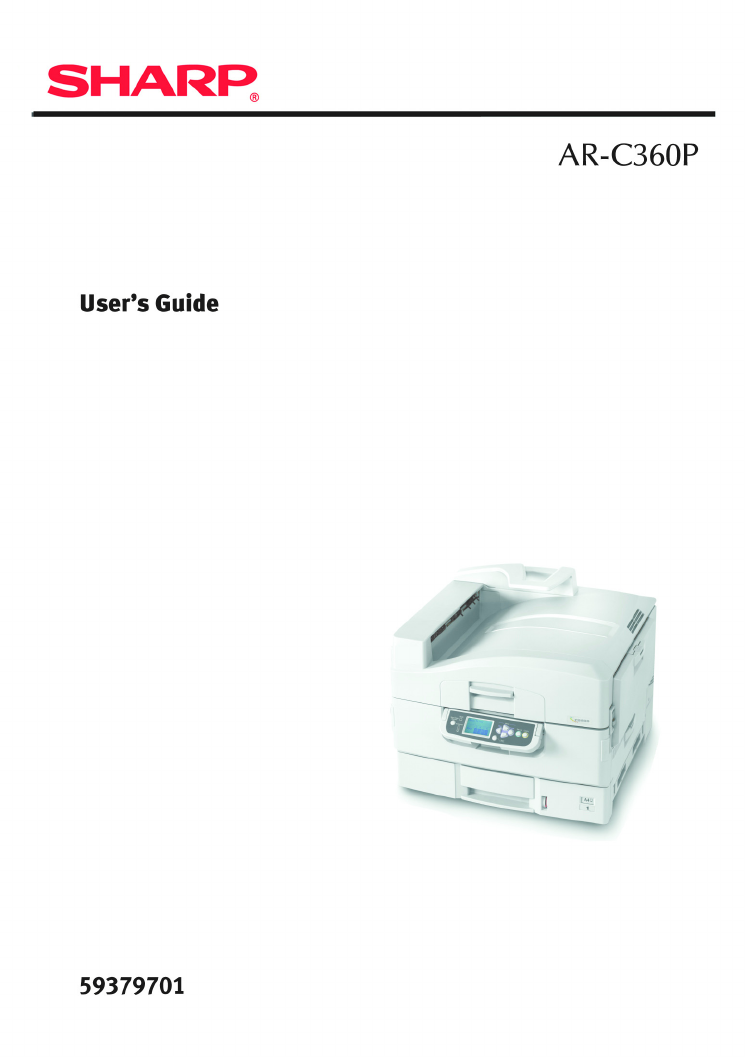
Sharp AR-C360P Manuale Utente
Navigare online o scaricare Manuale Utente per Stampanti per fotografie Sharp AR-C360P. Sharp AR-C360P User Manual Manuale Utente
- Pagina / 121
- Indice
- RISOLUZIONE PROBLEMI
- SEGNALIBRI

- Copyright Information 2
- Contents 3
- Contents > 4 4
- Notes, cautions and warnings! 6
- > PCL, PS emulations 8
- Introduction > 9 9
- About this guide 10
- Online usage 11
- Printing pages 11
- Introduction > 12 12
- Printer and paper overview 13
- Identifying major components 14
- 10. Face-down stacker 15
- 11. Power (on/off) switch 15
- 12. Face-up stacker 15
- 13. Duplex unit 15
- 28. Belt unit 18
- 29. Drum basket handle 18
- 30. Drum basket 18
- Software supplied 19
- Paper recommendations 20
- TYPE SIZE WEIGHT INPUT/ 21
- Trays and stackers 23
- Face-up stacker 24
- Duplex unit 24
- Tray and stacker examples 25
- Buttons and lights 32
- Control panel > 33 33
- Configuration information 35
- Using the menus 36
- Getting started 37
- Turning Off/On 38
- Turning On 39
- Connecting the USB interface 41
- Ethernet hub 42
- Using the Drivers CD 43
- Operation 44
- Consumables and maintenance 45
- ITEM LIFE ORDER NUMBER 46
- Cleaning the LED heads 47
- 3. Close the top cover 48
- 5. Replace Tray 1 50
- Tray 1 side cover 51
- 7. Turn on the printer 51
- Cleaning the printer casing 52
- 4. Turn on the printer 53
- Installing accessories 58
- Troubleshooting 59
- Troubleshooting > 60 60
- 4. Close the side cover 62
- WARNING! 63
- Troubleshooting > 65 65
- Troubleshooting > 67 67
- Troubleshooting > 69 69
- Troubleshooting > 70 70
- Troubleshooting > 72 72
- Troubleshooting > 74 74
- Troubleshooting > 76 76
- Troubleshooting > 78 78
- Troubleshooting > 80 80
- Troubleshooting > 82 82
- Check Inverter, paper jam 84
- Troubleshooting > 85 85
- Troubleshooting > 87 87
- Avoiding paper jams 89
- Check Finisher, Staple Jam 93
- 4. Pull out the staple unit 94
- Troubleshooting > 95 95
- Troubleshooting > 97 97
- ITEM SPECIFICATION 99
- MESSAGE COMMENT 100
- Appendix B – Menu system 102
- Configuration 103
- Supplies Life 104
- Paper Size in Tray 105
- ITEM VALUE DESCRIPTION 106
- Print Pages 107
- Sharp AR-C360P User’s Guide 108
- System Adjust 114
Sommario
Sharp AR-C360P User’s GuideIntroduction > 10About this guideNOTEImages used in this manual may include optional features that your printer does not
Sharp AR-C360P User’s GuideAppendix A – Display Panel Messages > 100Appendix A – Display Panel MessagesThe display panel messages are intended to b
Sharp AR-C360P User’s GuideAppendix A – Display Panel Messages > 101Open Cover Paper Remains tttttt Please see HELP for detailsAdditional paper has
Sharp AR-C360P User’s GuideAppendix B – Menu system > 102Appendix B – Menu systemThe top-level Functions menus are:> Configuration> Print Pag
Sharp AR-C360P User’s GuideAppendix B – Menu system > 103ConfigurationPrint Page CountFinisher CountITEM VALUE DESCRIPTIONColor Page nnnnnn Displ
Sharp AR-C360P User’s GuideAppendix B – Menu system > 104Supplies LifeNetworkThe items and settings displayed are specific to your system. Full det
Sharp AR-C360P User’s GuideAppendix B – Menu system > 105Paper Size in TraySystemITEM VALUE DESCRIPTIONTraym wh er e m is in range 1 to 4(similar
Sharp AR-C360P User’s GuideAppendix B – Menu system > 106Configuration example – monochrome pages printedTo display the total monochrome pages prin
Sharp AR-C360P User’s GuideAppendix B – Menu system > 107Print PagesITEM VALUE DESCRIPTIONPS Test Page Execute Prints the PostScript sample page.Co
Sharp AR-C360P User’s GuideAppendix B – Menu system > 108Print Information example – demonstration pageTo print a printer demo page to demonstrate
Sharp AR-C360P User’s GuideAppendix B – Menu system > 109Print Secure JobMenusTray ConfigurationITEM VALUE DESCRIPTIONEnter Password nnnn Enter a
Sharp AR-C360P User’s GuideIntroduction > 11These are paper documents that are packaged with the consumables and optional accessories.> Online H
Sharp AR-C360P User’s GuideAppendix B – Menu system > 110Traym Config, where m is in range 1 to 4(similar arrangement for all trays) Paper Size Tr
Sharp AR-C360P User’s GuideAppendix B – Menu system > 111Traym Config, where m is in range 1 to 4(similar arrangement for all trays) Media Weight
Sharp AR-C360P User’s GuideAppendix B – Menu system > 112MP Tray Config Paper Size A3 Nobi A3 Wide A3 A4 Sht Edge A4 Long Edge (A) A5 A6 B4
Sharp AR-C360P User’s GuideAppendix B – Menu system > 113MP Tray Config Media Type Plain Letterhead Transparency Labels Bond Recycled Card stock R
Sharp AR-C360P User’s GuideAppendix B – Menu system > 114System AdjustITEM VALUE DESCRIPTIONPower Save Time5 min 15 min 30 min 60 min 240 minSets t
Sharp AR-C360P User’s GuideAppendix B – Menu system > 115Low Toner Continue Stop Sets the printing operation when insufficient toner is detected. C
Sharp AR-C360P User’s GuideAppendix B – Menu system > 116Print Position AdjustDuplex X Adjust 0.00 +0.25 – +2.00 -2.00 – -0.25 mm 0.00 +0.01 – +0.
Sharp AR-C360P User’s GuideAppendix B – Menu system > 117Paper Black Setting0 +1 – +2 -2 – -1Used for micro adjustment when very visible faded prin
Sharp AR-C360P User’s GuideAppendix B – Menu system > 118Menus example 1 – Tray 1 transparenciesTo print on transparencies (accommodated in Tray1):
Sharp AR-C360P User’s GuideAppendix B – Menu system > 119Menus example 2 – MP Tray paper sizeTo set paper size in the MP Tray:1. Ensure that the di
Sharp AR-C360P User’s GuideIntroduction > 122. Choose which pages you wish to print:(a) [All pages], (1), for the entire manual.(b) [Current page],
Sharp AR-C360P User’s GuideIndex > 120INDEXAaccessories57installing58order details57arrow buttons33Bback button33Ccancel button33cleaningfeed rolle
Sharp AR-C360P User’s GuideIndex > 121software19specifications98Ttroubleshooting59turningoff38on39Uunsatisfactory printing91user’s guideprinting11
Sharp AR-C360P User’s GuidePrinter and paper overview > 13Printer and paper overviewOpening and closing the top coverTo open the top cover, squeeze
Sharp AR-C360P User’s GuidePrinter and paper overview > 14Identifying major componentsThe major components of your printer are identified in the gr
Sharp AR-C360P User’s GuidePrinter and paper overview > 1510. Face-down stacker11. Power (on/off) switch12. Face-up stacker13. Duplex unit10121113
Sharp AR-C360P User’s GuidePrinter and paper overview > 1614. Interface unit15. Network interface connector16. Parallel interface connector17. USB
Sharp AR-C360P User’s GuidePrinter and paper overview > 1720. Image drum cartridge and toner cartridge (Cyan)21. Image drum cartridge and toner car
Sharp AR-C360P User’s GuidePrinter and paper overview > 1828. Belt unit29. Drum basket handle30. Drum basket282930
Sharp AR-C360P User’s GuidePrinter and paper overview > 1931. High capacity Feeder (HCF) 3 traysSoftware suppliedCDs:> Printer DriversContains P
Sharp AR-C360P User’s GuideCopyright Information > 2Copyright InformationCopyright © 2005 Sharp Electronics Corporation and its suppliers.Document
Sharp AR-C360P User’s GuidePrinter and paper overview > 20Paper recommendationsYour printer will handle a variety of print media, including a range
Sharp AR-C360P User’s GuidePrinter and paper overview > 21Paper input and output informationThe following table relates paper parameters to input t
Sharp AR-C360P User’s GuidePrinter and paper overview > 22TransparenciesGlossy paperA4, Letter 0.004 in Tray 1 or MP TrayFace-up StackerTYPE SIZE W
Sharp AR-C360P User’s GuidePrinter and paper overview > 23Trays and stackersTrays 1 to 4Tray 1 is the standard blank paper input tray and can hold
Sharp AR-C360P User’s GuidePrinter and paper overview > 24stocks from 17 – 57 lb (64 – 216 g/m²). Pages printed in reading order (page 1 first) wil
Sharp AR-C360P User’s GuidePrinter and paper overview > 25Tray and stacker examplesLoading Trays 1 to 4Tray 1 is used in the following example.1. P
Sharp AR-C360P User’s GuidePrinter and paper overview > 26To avoid paper jams:> Do not leave space between the paper and the guides and rear sto
Sharp AR-C360P User’s GuidePrinter and paper overview > 27Using the MP Tray1. Squeeze the handle (1) and open the multi-purpose tray. 2. Fold out t
Sharp AR-C360P User’s GuidePrinter and paper overview > 284. Fan the paper to be loaded then tap the edges of the stack on a flat surface to make i
Sharp AR-C360P User’s GuidePrinter and paper overview > 29Using the stackersFace-down stackerWhen the face-up stacker (1) on the left side of the p
Sharp AR-C360P User’s GuideContents > 3ContentsCopyright Information . . . . . . . . . . . . . . . . . . . . . . 2Document Information . . . . .
Sharp AR-C360P User’s GuidePrinter and paper overview > 302. Flip out the paper support (2).3. Swivel out the paper support extension (3).23
Sharp AR-C360P User’s GuideControl panel > 31Control panelThe control panel can be swivelled to 90° (maximum) upwards from its base position (1) as
Sharp AR-C360P User’s GuideControl panel > 32Buttons and lightsThe parts of the control panel are identified and briefly explained below:1. Shutdow
Sharp AR-C360P User’s GuideControl panel > 335. Up-arrow button Enters menu mode and enables upward movement through the displayed list of menu ite
Sharp AR-C360P User’s GuideControl panel > 34Display Panel messagesThere are four types of display panel message:> Help information> Status i
Sharp AR-C360P User’s GuideControl panel > 35menus are available to the general user to make various settings that are used in the running of the p
Sharp AR-C360P User’s GuideControl panel > 36Using the menusNOTEMenu details are given in “Appendix B – Menu system” on page 102 for reference.The
Sharp AR-C360P User’s GuideGetting started > 37Getting startedThis section provides information to help you get started with using your printer.Pri
Sharp AR-C360P User’s GuideGetting started > 38> above your printer:Turning Off/OnTurning Off1. Hold down the Shutdown/Restart button (1) on the
Sharp AR-C360P User’s GuideGetting started > 392. When the display panel shows that you can either turn off or restart the printer, use the On/Off
Sharp AR-C360P User’s GuideContents > 4Checking current settings . . . . . . . . . . . . . . . . . . 40Interfaces and connection . . . . . . . .
Sharp AR-C360P User’s GuideGetting started > 40Checking current settingsCarry out the following steps to generate a Configuration report (Menu Map)
Sharp AR-C360P User’s GuideGetting started > 41> Ethernet – For network cable connection.NOTEInterface cables are not supplied with your printer
Sharp AR-C360P User’s GuideGetting started > 422. Remove the protective cover from the network connector on the printer.3. Connect an Ethernet cabl
Sharp AR-C360P User’s GuideGetting started > 434. Turn on the printer and then the computer.If your printer is to be installed as a network printer
Sharp AR-C360P User’s GuideOperation > 44OperationUsing the printerFor full details of how to use the printer and any optional accessories to print
Sharp AR-C360P User’s GuideConsumables and maintenance > 45Consumables and maintenanceThis section explains how to replace consumable and maintenan
Sharp AR-C360P User’s GuideConsumables and maintenance > 46Consumable item order informationMaintenance item order detailsITEM LIFE ORDER NUMBERTon
Sharp AR-C360P User’s GuideConsumables and maintenance > 47Replacing consumables/maintenance itemsEach consumable or maintenance item comes complet
Sharp AR-C360P User’s GuideConsumables and maintenance > 482. With an LED lens cleaner or soft cloth, gently wipe each of the four heads (1). Move
Sharp AR-C360P User’s GuideConsumables and maintenance > 49Cleaning the paper feed rollersClean the paper feed rollers if paper jams frequently occ
Sharp AR-C360P User’s GuideContents > 5Specifications . . . . . . . . . . . . . . . . . . . . . . . . . . . . 98Appendix A – Display Panel Message
Sharp AR-C360P User’s GuideConsumables and maintenance > 503. Remove Tray 1 completely from the printer.4. Gaining access through the gap left by T
Sharp AR-C360P User’s GuideConsumables and maintenance > 516. Return the paper guide plate to its original position and close Tray 1 side cover.7.
Sharp AR-C360P User’s GuideConsumables and maintenance > 52Cleaning the printer casing1. Turn the printer off by using the Shutdown/Restart button
Sharp AR-C360P User’s GuideConsumables and maintenance > 534. Turn on the printer.
Sharp AR-C360P User’s GuideConsumables and maintenance > 54Emptying the punch chip box (Punch unit optional accessory)When the display panel indica
Sharp AR-C360P User’s GuideConsumables and maintenance > 553. Discard the chips in an appropriate place.4. Replace the punch chip box carefully int
Sharp AR-C360P User’s GuideConsumables and maintenance > 565. Check that the punch chip box has been replaced correctly then move the Finisher back
Sharp AR-C360P User’s GuideOptional accessories > 57Optional accessoriesThis section describes optional accessory equipment for your printer. The f
Sharp AR-C360P User’s GuideOptional accessories > 58Installing accessoriesEach accessory (apart from the Finisher and MFP Upgrade Kit) comes comple
Sharp AR-C360P User’s GuideTroubleshooting > 59TroubleshootingThis section provides information to help you deal with problems that may arise when
Sharp AR-C360P User’s GuideNotes, cautions and warnings! > 6Notes, cautions and warnings!NOTEA note provides additional information to supplement t
Sharp AR-C360P User’s GuideTroubleshooting > 602. Holding it by the tab (2), turn the paper guide outward.3. Carefully remove the jammed paper.4. P
Sharp AR-C360P User’s GuideTroubleshooting > 61Open cover, paper jam, side cover1. If the MP Tray is open, close it so that the side cover (1) is v
Sharp AR-C360P User’s GuideTroubleshooting > 623. Carefully remove the jammed paper.4. Close the side cover.
Sharp AR-C360P User’s GuideTroubleshooting > 63Open cover, paper jam, top cover1. Squeeze the top cover handle (1) and open the top cover.2. Squeez
Sharp AR-C360P User’s GuideTroubleshooting > 643. Carefully remove any paper on the belt.4. If paper is jammed in the fuser unit, push the lock lev
Sharp AR-C360P User’s GuideTroubleshooting > 655. Pull up the jam release levers (5) and remove the jammed paper.6. Carefully replace the fuser uni
Sharp AR-C360P User’s GuideTroubleshooting > 667. If paper is jammed near the paper exit, open the face-up stacker (7).8. Open the side cover (pape
Sharp AR-C360P User’s GuideTroubleshooting > 679. Close the side cover (paper exit) and then the face-up stacker.10. Return the image drum basket (
Sharp AR-C360P User’s GuideTroubleshooting > 6811. Close the top cover and ensure it is latched.Paper jams – duplex unitCheck duplex unit, paper ja
Sharp AR-C360P User’s GuideTroubleshooting > 692. Operate the duplex cover release button (2) and open the cover.3. Carefully remove any jammed pap
Sharp AR-C360P User’s GuideIntroduction > 7IntroductionCongratulations on buying an Sharp color printer. Your new printer is designed with advanced
Sharp AR-C360P User’s GuideTroubleshooting > 704. Operate the levers (3) and pull out the duplex unit.5. Holding the front top cover by the grip (4
Sharp AR-C360P User’s GuideTroubleshooting > 716. Remove any jammed paper.7. In similar manner, check for and clear any paper jammed under the rear
Sharp AR-C360P User’s GuideTroubleshooting > 728. Replace the two top covers.9. Raise the front cover of the duplex unit.
Sharp AR-C360P User’s GuideTroubleshooting > 7310. Push the duplex unit back into position.11. If you detached a Finisher unit to gain access to th
Sharp AR-C360P User’s GuideTroubleshooting > 74Paper jams – Finisher (optional accessory)Check Finisher, paper jam/paper remainsUse the Help button
Sharp AR-C360P User’s GuideTroubleshooting > 752. Operate the Finisher lever (1) and move the Finisher away from the Inverter.3. Open the Finisher
Sharp AR-C360P User’s GuideTroubleshooting > 764. Carefully remove any jammed paper.5. Close the Finisher top cover.
Sharp AR-C360P User’s GuideTroubleshooting > 776. Move the Finisher back into position and connect it to the Inverter.594, 597, 598/ 644, 646 (pape
Sharp AR-C360P User’s GuideTroubleshooting > 782. Open the Finisher front cover (2).3. Continue to turn the lower knob (3) clockwise until any jamm
Sharp AR-C360P User’s GuideTroubleshooting > 794. Remove the ejected paper.5. Close the Finisher front cover.
Sharp AR-C360P User’s GuideIntroduction > 8> USB 2.0 and parallel (IEEE-1284) interfaces> PCL, PS emulations> EFI Fiery controller and sof
Sharp AR-C360P User’s GuideTroubleshooting > 806. Open the Finisher right side cover.7. Carefully remove any jammed paper.
Sharp AR-C360P User’s GuideTroubleshooting > 818. Close the Finisher right side cover.9. Move the Finisher back into position and connect it to the
Sharp AR-C360P User’s GuideTroubleshooting > 82590 (paper jam in Finisher/Punch unit)1. Operate the Finisher lever (1) and move the Finisher away f
Sharp AR-C360P User’s GuideTroubleshooting > 833. Open the Finisher top cover.4. Carefully remove any jammed paper.5. Close the Finisher top cover.
Sharp AR-C360P User’s GuideTroubleshooting > 846. Move the Finisher back into position and connect it to the Inverter.Check Inverter, paper jam1. O
Sharp AR-C360P User’s GuideTroubleshooting > 852. Squeeze the recessed handle (2) and open the left side cover of the Inverter.3. Carefully remove
Sharp AR-C360P User’s GuideTroubleshooting > 864. Close the Inverter left side cover.5. Move the Finisher back into position and connect it to the
Sharp AR-C360P User’s GuideTroubleshooting > 876. Operate the Inverter lever (3) and separate the Inverter from the printer.7. Open the right side
Sharp AR-C360P User’s GuideTroubleshooting > 888. Remove any jammed paper.9. Close the right side door.
Sharp AR-C360P User’s GuideTroubleshooting > 8910. Move the Finisher and Inverter back into position and connect to the printer.Avoiding paper jams
Sharp AR-C360P User’s GuideIntroduction > 9Additionally, the following optional features are available:> High Capacity Feeder (HCF) (1590 sheets
Sharp AR-C360P User’s GuideTroubleshooting > 90Your printer feed roller is dirty. Wipe the roller with a cloth moistened with water.Your printer fe
Sharp AR-C360P User’s GuideTroubleshooting > 91Dealing with unsatisfactory printingSYMPTOMS POSSIBLE CAUSES STEPS TO TAKEVertical white lines can
Sharp AR-C360P User’s GuideTroubleshooting > 92Vertical lines appear.The image drum cartridge is damaged. Replace the image drum cartridge. The ton
Sharp AR-C360P User’s GuideTroubleshooting > 93Staple jams – Finisher (optional accessory)Check Finisher, Staple JamWhen the display indicates a st
Sharp AR-C360P User’s GuideTroubleshooting > 943. Remove any paper that awaits stapling in the paper ejection area.4. Pull out the staple unit.
Sharp AR-C360P User’s GuideTroubleshooting > 955. Turn the knob in the direction indicated to move the stapler to the front.6. Grip both sides of t
Sharp AR-C360P User’s GuideTroubleshooting > 968. Remove all staples that are emerging from the staple case.9. Return the staple cartridge gate to
Sharp AR-C360P User’s GuideTroubleshooting > 9711. Ensure that the staple cartridge is securely installed back into the staple unit then push the s
Sharp AR-C360P User’s GuideSpecifications > 98SpecificationsITEM SPECIFICATIONDimensions 25.8x24.4x18.2 in (WxDxH)655x620x462 mm (WxDxH)Weight With
Sharp AR-C360P User’s GuideSpecifications > 99Noise level Operating: 53dBA maximumStandby: 40dBA maximumPower save: 40dBA maximum after 30 mins bac
Prodotti e manuali riguardandi Stampanti per fotografie Sharp AR-C360P
 (46 pagine)
© 2020, manymanuals.it. Tutti i diritti riservati | 0.039 s |
 Manymanuals.com
 Manymanuals.de
 Manymanuals.fr
 Manymanuals.it
 Manymanuals.pl
 Manymanuals.cz
 Manymanuals.es
 Manymanuals-pt.com
Commenti su questo manuale