Sharp MX-2301N Specifiche Pagina 12: OPERATION PANEL
 1
 2
 3
 4
 5
 6
 7
 8
 9
 10
 11
 12
 13
 14
 15
 16
 17
 18
 19
 20
 21
 22
 23
 24
 25
 26
 27
 28
 29
 30
 31
 32
 33
 34
 35
 36
 37
 38
 39
 40
 41
 42
 43
 44
 45
 46
 47
 48
 49
 50
 51
 52
 53
 54
 55
 56
 57
 58
 59
 60
 61
 62
 63
 64
 65
 66
 67
 68
 69
 70
 71
 72
 73
 74
 75
 76
 77
 78
 79
 80
 81
 82
 83
 84
 85
 86
 87
 88
 89
 90
 91
 92
 93
 94
 95
 96
 97
 98
 99
 100
 101
 102
 103
 104
 105
 106
 107
 108
 109
 110
 111
 112
 113
 114
 115
 116
10
OPERATION PANEL
Ready to scan for copy.
Full Colour
Colour Mode
Auto
Exposure
100%
Copy Ratio
Job Detail
Settings
2-Sided Copy
Original
0
Output
Special Modes
File
Quick File
2.
3.
4.
1.
A4R
A4
Plain
B4
A3
A4
A4
JOB STATUS
IMAGE SEND
DOCUMENT
FILING
COPY
PRINT
READY
DATA
DATA
LINE
SYSTEM
SETTINGS
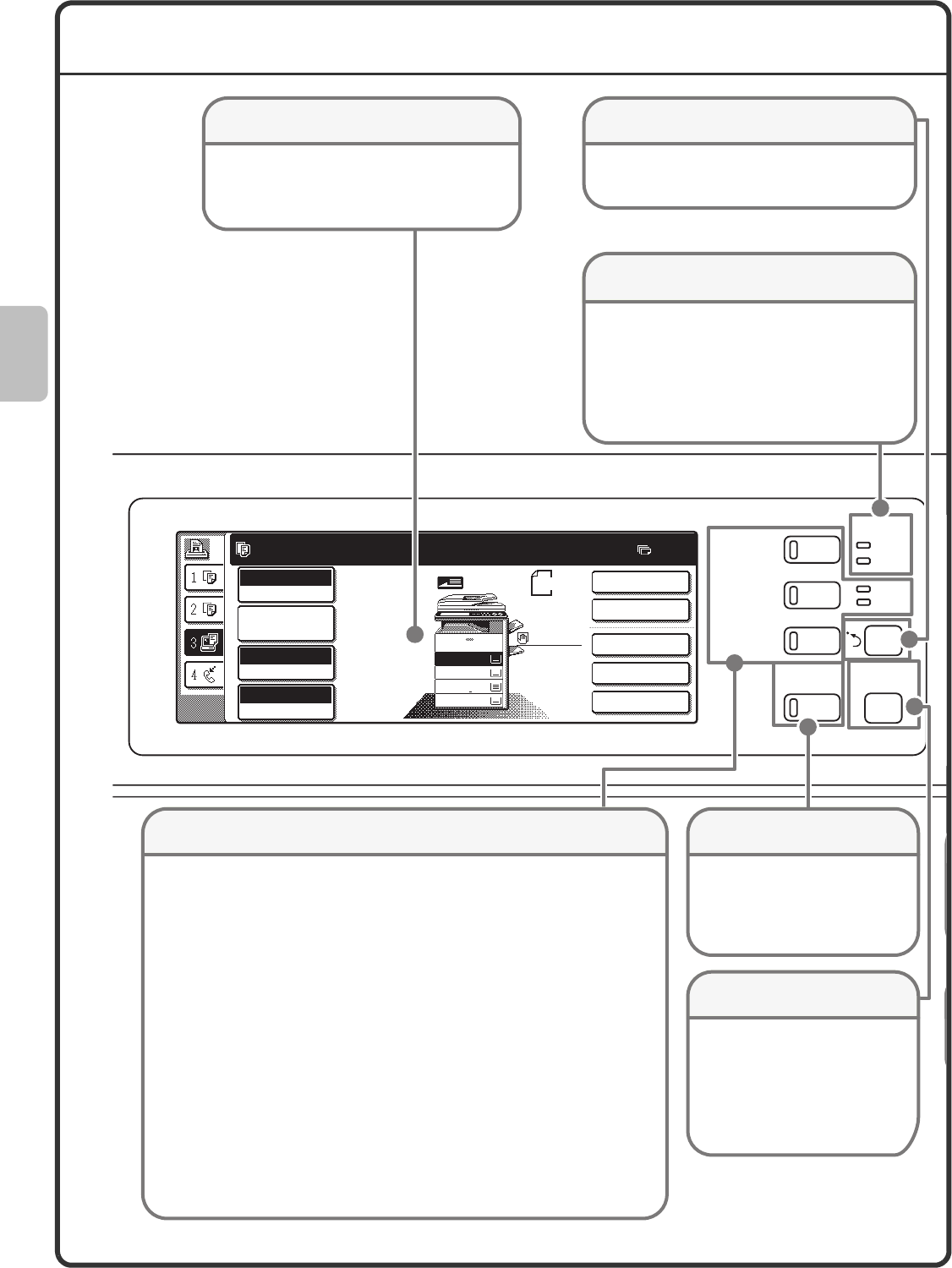
Touch panel
Messages and keys appear.
Operations are performed by directly
touching the keys with your fingers.
[JOB STATUS] key
Press this key to view the job
status screen. You can check
the status of jobs and cancel
jobs in the job status screen.
Print mode indicators
READY indicator
Print data can be received when this indicator is lit.
DATA indicator
This blinks while print data is being received
and lights steadily while printing is taking
place.
[SYSTEM SETTINGS] key
Mode select keys
Use these keys to change the mode displayed in the touch panel.
The indicator of the selected key lights up.
[DOCUMENT FILING] key
When you wish to print or send a file stored on the hard drive, press this
key to select document filing mode.
[IMAGE SEND] key
When you wish to use the scan or fax functions, press this key to select
network scanner / fax mode.
· LINE indicator
This lights up during transmission or reception in fax mode. The
indicator also lights up during transmission in scan mode.
· DATA indicator
When a received fax cannot be printed because of a problem such as
out of paper, the indicator blinks. The indicator lights steadily when
there is data that is waiting to be transmitted.
[COPY] key
When you wish to use the copy function, press this key to select copy
mode. You can hold down the [COPY] key to check the total page count
and how much toner remains.
Press this key to display the
system settings screen. The
system settings can be adjusted to
make the machine easier to use,
such as configuring paper tray
settings and storing addresses.
Function key
To use the SharpOSA function, press this
key to switch to SharpOSA mode.
File PDF · ·
Domande su Sharp MX-2301N
Non ci sono ancora domande su questo manuale. Fate la prima.
Prodotti e manuali riguardanti Apparecchi multifunzione Sharp MX-2301N
- Apparecchi multifunzione Sharp MX-4101N Specifiche
 (76 pagine)
- Apparecchi multifunzione Sharp JW-20FLT Manuale Utente
(197 pagine)
- Apparecchi multifunzione Sharp MX-C381 Specifiche
(148 pagine)
- Apparecchi multifunzione Sharp MX-M260 Manuale Utente
 (160 pagine)
- Apparecchi multifunzione Sharp MX-4101N Specifiche
(12 pagine)
- Apparecchi multifunzione Sharp MX-M564N Manuale Utente
(8 pagine)
- Apparecchi multifunzione Sharp MX-M564N Manuale Utente
(8 pagine)
- Apparecchi multifunzione Sharp CPD-3830 Manuale Utente
(1 pagine)
- Apparecchi multifunzione Sharp MX-2010U Manuale Utente
(12 pagine)
- Apparecchi multifunzione Sharp MX-B381 Manuale Utente
(12 pagine)
- Apparecchi multifunzione Sharp MX-7500N Manuale Utente
(30 pagine)
- Apparecchi multifunzione Sharp AL-2021 Specifiche
(91 pagine)
- Apparecchi multifunzione Sharp MX-B402 Manuale Utente
(50 pagine)
- Apparecchi multifunzione Sharp FO-155 Specifiche

 (165 pagine)
- Apparecchi multifunzione Sharp MX-4140N Manuale di Installazione
(19 pagine)
- Apparecchi multifunzione Sharp JW-50FL Manuale Utente
(201 pagine)
- Apparecchi multifunzione Sharp MX-4140N Manuale Utente
(12 pagine)
- Apparecchi multifunzione Sharp CPD-3830 Manuale Utente
(12 pagine)
- Apparecchi multifunzione Sharp CD600 - B/W - Fax Manuale Utente
(23 pagine)
- Apparecchi multifunzione Sharp AR-810 Manuale delle Istruzioni
(178 pagine)